

Table of Contents
- Understanding the Benefits of a Domain Gmail for Your brand
- Step-by-step Guide to Purchasing Your Own Domain Gmail
- Setting Up Your Domain Gmail: Tips for a seamless Experience
- maximizing Productivity with Domain Gmail features
- Common Challenges and Solutions When Using Domain Gmail
- Q&A
- Concluding remarks

Understanding the Benefits of a Domain Gmail for Your Brand
Establishing a professional email address with a domain Gmail can significantly enhance your brand’s credibility. When customers see an email ending with your domain rather of a generic service,it fosters a sense of trust and authenticity. Brand recognition increases as your email becomes identifiable, making it easier for clients to remember and connect with your services. With your domain, every email you send reinforces your brand identity, leading to potential customer loyalty and engagement.
Moreover, integrating a domain Gmail into your operations can streamline communication. With features like custom email addresses, you can create specific accounts for different departments, such as support@yourdomain.com or sales@yourdomain.com. This institution simplifies your workflow and helps recipients know exactly who they’re communicating with. Furthermore,tools within Google Workspace-like shared calendars and Google Drive-foster collaboration,allowing teams to work more efficiently.
switching to a domain Gmail opens up a world of analytics and management options that generic email services cannot provide. leveraging Google’s built-in tools allows you to:
- Track Email Engagement: Understand open rates and better tailor your marketing efforts.
- Ensure Security: Benefit from Google’s robust security features, ensuring that your business communications are protected.
- Use Advanced filtering: Keep your inbox organized with powerful filtering capabilities tailored to your needs.
Step-by-Step Guide to Purchasing your Own Domain Gmail
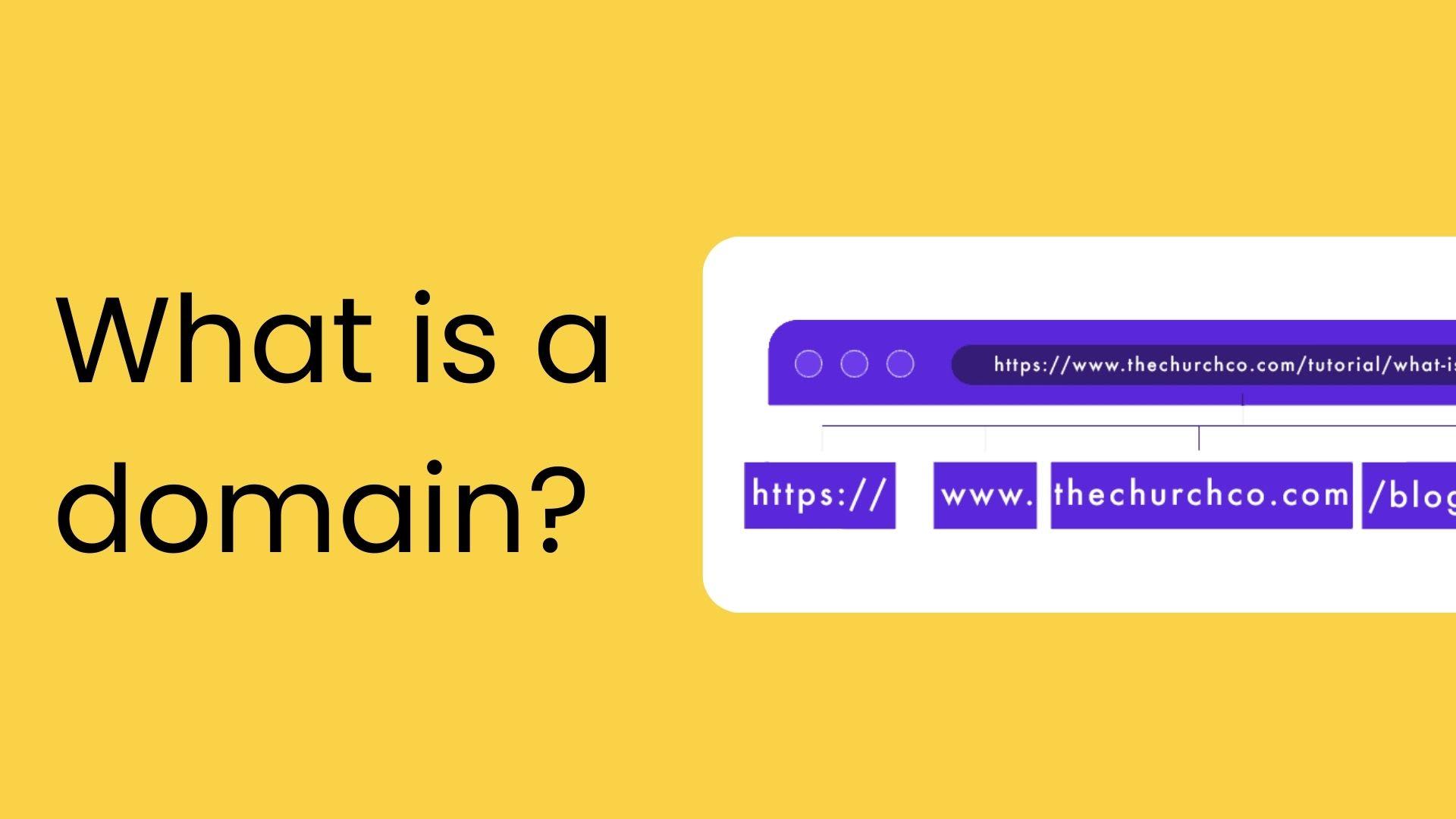
Purchasing your own domain Gmail is a straightforward process that opens up a world of professional communication. start by selecting a domain name that reflects your brand or personal identity. Choose a name that’s short, memorable, and relevant to your purpose. Consider using keywords that resonate with your audience’s interests. Once you have a name in mind, check its availability through domain registrars like Google Domains, GoDaddy, or Namecheap. These platforms typically have search tools to quickly inform you if your desired domain is available.
After securing your domain, it’s time to set up Google Workspace (formerly G Suite), which allows you to create a custom Gmail address. Visit the Google Workspace website and choose a plan that suits your needs. Whether you’re a solopreneur or managing a larger team, Google offers various pricing tiers that include different features. You’ll need to provide some basic details, including your domain name, to get started. Google will guide you through each step to verify your ownership of the domain, which typically involves updating your DNS settings through your domain registrar.
Once verification is complete, you can create user accounts for yourself and any team members. This is where the magic happens; you can now send and receive emails using your professional domain. to enhance your email experience, consider setting up custom signatures and organizing your inbox with labels and filters. If desired, you can also integrate other Google services, like Google Drive and Google Calendar, which help streamline your workflow. Hear’s a speedy overview of the pricing plans for Google Workspace:
| Plan Name | Monthly Cost | Features |
|---|---|---|
| Business Starter | $6 | Custom domain email, 30 GB cloud storage, video conferencing |
| Business Standard | $12 | Custom domain email, 2 TB cloud storage, enhanced security |
| Business Plus | $18 | Custom domain email, 5 TB cloud storage, advanced compliance features |

Setting Up Your Domain Gmail: tips for a Seamless Experience
When you purchase a domain and want to integrate it with Gmail, ensuring a smooth setup process is crucial. Start by logging into your Google Workspace admin console to access the settings for your domain email. From there,you’ll be prompted to verify your domain,which typically involves adding a TXT record to your domain’s DNS settings. This verification step not only confirms your ownership but also unlocks the full suite of Google services associated with your domain email.
Next, it’s critically important to configure your MX records properly to route your emails through Gmail. Go to the DNS management section of your domain registrar (like GoDaddy or Namecheap) and update the MX records to Google’s servers. This step is essential for receiving emails. Here’s a quick overview of the MX records you’ll need:
| Priority | Mail Server |
|---|---|
| 1 | ASPMX.L.GOOGLE.COM |
| 5 | ALT1.ASPMX.L.GOOGLE.COM |
| 5 | ALT2.ASPMX.L.GOOGLE.COM |
| 10 | ALT3.ASPMX.L.GOOGLE.COM |
| 10 | ALT4.ASPMX.L.GOOGLE.COM |
personalize your Gmail settings to enhance your user experience. Consider setting up filters, labels, and forwarding preferences to organize your emails efficiently.To make the most of your new domain email, take advantage of gmail’s productivity features, such as calendar integration and task management.These tools can streamline your workflow and improve communication,making your new domain Gmail setup not just functional,but also effective for your needs.
Maximizing Productivity with Domain gmail Features
One of the standout features of using Gmail with your own domain is the enhanced organization capabilities it provides. With custom labels and filters, you can sort your incoming emails based on various criteria like sender, keywords, or even specific projects. This allows for a more streamlined workflow, ensuring that important messages don’t get lost in the shuffle.To set up filters, simply navigate to the settings menu and select the “Filters and Blocked Addresses” tab. Here, you can create new filters tailored to your unique needs.
Integrating Google Calendar with your domain Gmail account enhances productivity by keeping your schedule accessible and synchronized across devices. The calendar is not just a scheduling tool; it allows for sharing with team members, setting reminders, and even creating recurring events. By utilizing the agenda view, you can quickly glance at your upcoming meetings and deadlines, helping you prioritize your day effectively. Make sure to leverage the color-coding feature to differentiate between personal and professional commitments.
Collaborative tools,such as Google Drive and Google Meet,also play a crucial role in maximizing productivity.With your domain Gmail account, you can share files seamlessly through Drive, ensuring that all team members have access to the latest documents and resources. Additionally, Google Meet allows for high-quality video conferencing directly integrated into Gmail, promoting efficient communication without the need to switch platforms.Here’s a simple overview of how these tools contribute to productivity:
| Tool | Description | Benefit |
|---|---|---|
| Google Drive | Cloud storage for files | Easy access and collaboration on documents |
| Google Meet | Video conferencing platform | Facilitates remote meetings effortlessly |
| Google Calendar | Appointment and event scheduling | Keeps track of important dates and meetings |

Common Challenges and Solutions When Using Domain Gmail
Using google Workspace for custom domain emails can enhance your professional image, but users often encounter several hurdles. One common challenge is managing user accounts and permissions. when you have multiple team members, it can become cumbersome to grant or restrict access to certain features. A solution to streamline this process involves utilizing Google Admin Console effectively. This interface allows administrators to manage all user settings from a centralized dashboard, making it easier to create, delete, or modify accounts as needed. Regularly auditing user permissions can also mitigate security risks.
Another frequent issue is delivery problems with emails. Sometiems, messages sent from your domain Gmail might land in the recipient’s spam folder. To combat this, ensure proper email authentication protocols are set up, like SPF, DKIM, and DMARC. these protocols help validate your emails, reducing the chances of them being categorized as spam. Additionally, regularly monitoring your domain’s reputation and ensuring that your email practices align with best standards can significantly improve delivery rates.
Lastly, several users face challenges with syncing their custom domain Gmail with other tools or applications. Proper integration is crucial for maintaining workflow efficiency. As an example, if you use a third-party CRM or project management software, make sure it is compatible with Google Workspace. Many tools offer direct integrations or APIs, so researching and selecting tools that seamlessly work with your domain Gmail accounts can enhance productivity and keep your team organized.
Q&A
Q&A: Understanding How to Buy a Domain with Gmail
Q1: What does it mean to buy a domain with Gmail?
A1: Buying a domain with Gmail means obtaining a personalized domain name (like yourname@yourbusiness.com) and integrating it with Google Workspace (formerly G Suite). This allows you to use gmail’s powerful email interface while projecting a professional image through a custom email address.Q2: Why should I buy a domain name rather of using a free email service?
A2: A custom domain name adds credibility and professionalism to your business. It helps build trust with clients and customers, supports brand recognition, and enhances your overall online presence compared to generic free email addresses.Q3: How do I buy a domain name to use with Gmail?
A3: to buy a domain for Gmail, follow these steps:- Choose a reputable domain registrar (like Google Domains, godaddy, or Namecheap).
- Search for your desired domain name to check its availability.
- Complete the purchase process by providing your details and paying the registration fee.
- After acquiring your domain, sign up for Google workspace, and follow the setup instructions to link your new domain to Gmail.
Q4: What are the costs associated with buying a domain for Gmail?
A4: The cost varies based on the domain registrar and the domain extension (like .com, .org, etc.). Generally,you can expect to pay anywhere from $10 to $50 per year for registration. Additionally,Google Workspace subscription plans start at around $6 per user per month for businesses.Q5: Can I transfer my existing domain to use with Gmail?
A5: Yes, you can transfer your existing domain from another registrar to Google Domains. The process typically involves unlocking the domain at your current registrar, obtaining a transfer authorization code, and then initiating the transfer through Google Domains.Q6: what are the benefits of using Google Workspace with my domain?
A6: Google Workspace offers numerous benefits, including:- Access to professional email using your domain.
- Collaborative tools like Google Drive, Docs, and Sheets.
- Enhanced security with built-in spam filtering and two-factor authentication.
- 24/7 customer support for any technical issues.
Q7: Is it easy to set up my domain with Gmail?
A7: Yes! Setting up your domain with Gmail is straightforward. Google provides a user-friendly setup guide, and most configurations can be completed in a few steps. Whether you’re a tech novice or an experienced user, you’ll find the process manageable.Q8: what if I encounter issues while setting up my domain with Gmail?
A8: If you run into problems during the setup, don’t hesitate to reach out to Google’s customer support. They offer various resources, including help articles, community forums, and direct assistance to ensure your domain is up and running smoothly.Q9: Can I use my domain email on mobile devices?
A9: Absolutely! You can access your domain email through the Gmail app on mobile devices. Simply add your custom email account in the app, and you’ll have full access to all Gmail features on the go.Q10: Are there any limitations to using my domain with Gmail?
A10: While using Gmail with your own domain offers many advantages, there are limitations, such as storage limits based on your Google Workspace plan. Additionally, you must adhere to Google’s policies and terms of service for business accounts.By addressing these common questions, we hope to simplify the process of acquiring a custom domain and using it with Gmail, helping you establish a professional digital presence effortlessly.
Concluding Remarks
securing a unique domain email through Gmail is more than just a practical step; it’s an investment in your brand’s professionalism and credibility. With the ease of integration and the powerful features that come with google Workspace, you can streamline your communication while presenting a polished image to clients and colleagues alike. As you embark on this journey,remember that the right domain not only enhances your online presence but also helps you stand out in a crowded digital landscape. So why wait? Take the leap, purchase your domain, and elevate your email game today! With just a few clicks, you’re on your way to transforming your digital communication and fostering stronger connections in the professional world. Happy emailing!